6 Features Of XFCE Which Make It The Best Desktop Environment
Date First Published: 3rd August 2026
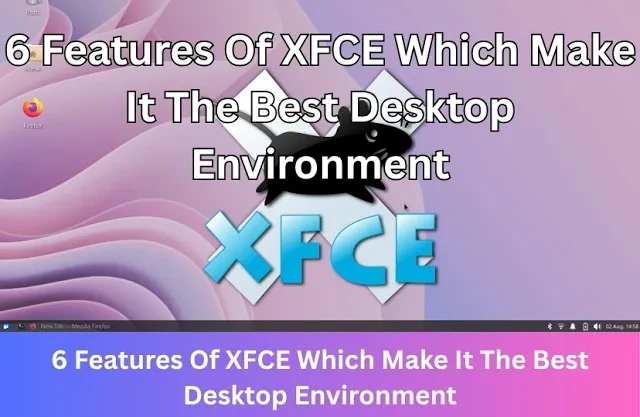
XFCE is a fast desktop environment for Linux and we value it for its low resource usage, high speed, and deep customisation. In this video, we will explore six key features of the XFCE desktop environment which make it a great choice and how you can install it.
How To Install The XFCE Desktop Environment?
The XFCE desktop environment is not limited to one Linux distribution. If you want to switch from Ubuntu or Kubuntu to Xubuntu, you don't have to reinstall the whole operating system.
You can switch desktop environments by using your distribution's package manager. For standard Debian or Ubuntu, you can install it by typing sudo apt install xfce4 in the terminal. You will then have to restart your computer and choose an XFCE session before you type your password on the login screen. But, if you want a fully clean XFCE system without any leftover apps from KDE Plasma or gnome, you can back up your personal files and flash an X ubuntu ISO.
Low Resource Usage
Unlike heavy desktops, like gnome or KDE Plasma, XFCE uses a small amount of RAM and CPU power because it skips heavy visual effects, like background animations. It can run well on many older or low-spec computers with limited processing power. On a fresh boot, it typically uses well under a gigabyte of RAM, often around 600 to 800 MB. It's designed to conserve system resources on older hardware, but it's also fully functional for modern systems if you prefer dedicating maximum system resources to your apps rather than the desktop itself.
Deep Layout Customisation
XFCE is one of the most customisable desktop environments. You can unlock panels, including the taskbar, and drag them to any edge of the screen, or resize them. You can also add widgets, like system monitors to the taskbar.
XFCE gives you the flexibility to change the colours of window borders from pre-defined themes and adjust the transparency, which don't require you to download any extra files. You can also add a custom theme by downloading the theme files from XFCE Look and extracting it into your home folder. You can change the background image in the desktop settings and set a picture of your choice.
While XFCE requires more manual configuration than KDE Plasma because it doesn't have a built-in online theme store, you can customise most aspects of it if you're willing to do some manual configuration. The customisation options are better than the default gnome desktop environment used by standard Ubuntu, which is designed for a distraction-free workflow and heavily relies on third-party extensions to change the core layout.
Modular Design
XFCE has a modular design, which means that each part of the desktop environment is packaged and maintained as a separate project. Individual elements, such as the panel or file manager, can run separately or be swapped out with alternative window managers like i3 or Openbox. It's much more modular than the gnome desktop environment, which runs as a tightly integrated system, where core apps rely heavily on the central gnome stack and changes depend on extensions.
Ease Of Use
XFCE has a very traditional and user-friendly desktop feel with a bottom or top panel, a familiar start menu, a taskbar, and a system tray. It avoids futuristic layouts and prioritises a classic and stable interface. Out of the box, it feels like a classic desktop and you can tweak the settings to mimic older Windows versions or macOS layouts. It won't force you to use unwanted desktop features because it's modular and easily customisable.
If you install XFCE on a base system like Debian or Arch Linux, you can choose a minimal setup to skip default apps or panel plugins you do not want. When installing it on Linux Mint, it will come with its own tools, including the Software Manager, Update Manager, and Welcome Screen. On X Ubuntu, it provides a closer-to-stock Ubuntu experience and relies on Canonical's Snap packages for default software installations. Both X Ubuntu and Linux Mint XFCE come with a custom theme and panel setup ready to use, and include easier tools to set up extra drivers for Wi-Fi and graphics cards. Debian and Arch may require manual steps for some closed-source drivers.
Simple Session Manager
XFCE has a built-in session manager that saves the state of your desktop, including opened apps, and restores them during startup. You can create and switch between different sessions when you log in and it provides graphical configuration tools to control the apps that run at startup and the sessions you previously saved. If you want to shut down your computer and keep your apps saved so you can go back to where you left off, you can choose to save your session.
Rock-Solid Stability
XFCE is widely known for its stability. It avoids heavy animations or radical changes and XFCE updates and major version releases happen deliberately and slowly, which ensures that features are thoroughly tested before reaching users. By consooming very little memory and CPU and sticking to a traditional desktop design, which doesn't push rapid, experimental interface overhauls, it avoids pushing older or low-spec hardware to its limits, which reduces system crashes. It's built from independent components, like the window manager, panel, and file manager so that a failure in one part rarely brings down the whole system.
Should I Use XFCE?
XFCE is a great choice if you prioritise speed, stability, and low resource usage over flashy animations. The classic taskbar and application menu setup will feel familiar if you're switching from Windows and want a desktop environment light on your RAM and CPU. If you want more powerful built-in apps and fancy graphical effects, and more advanced workflow settings, KDE Plasma would be a better choice.
Comments
About Us
-
We offer guides, tutorials, and reviews about the world of information technology. Whether you're a tech enthusiast, a professional, or a beginner, our goal is to inspire you and guide your tech journey. Subscribe to stay updated with the latest videos and explore the exciting world of computing and information technology.
Recent Articles


Recent Quizzes
Subtopics
Network Services Network Setups Network Standards Network Hardware Network Identifiers Network Software Internet Protocols Internet Organisations Data Transmission Technologies Web Development Web Design Web Advertising Web Applications Web Organisations Web Technologies Web Services SEO Threats To Systems, Data & Information Security Mechanisms & Technologies Computer Hardware Computer Software Ethics & Sustainability Legislation & User Data Protection