Kubuntu Review - Should You Try It?
Date First Published: 11th September 2026
Are you looking for a reliable Linux distribution that balances power and appearance? Kubuntu is an official edition of Ubuntu which combines the Ubuntu core with the customisable KDE plasma desktop environment. In this video, we will review its performance, user interface, and customisation to help you decide whether you should try it.
Setup and Installation
Kubuntu is generally easy to set up and install for beginners. It uses a graphical installer which guides you through every step. The installer simply asks you for the language, time zone, keyboard layout, and a username and a password without requiring terminal commands. Most components, like Wi-Fi, graphics, and audio work right away without manual setup. Like other editions of Ubuntu, you can boot from the USB drive to try Kubuntu before making any changes to your hard drive.
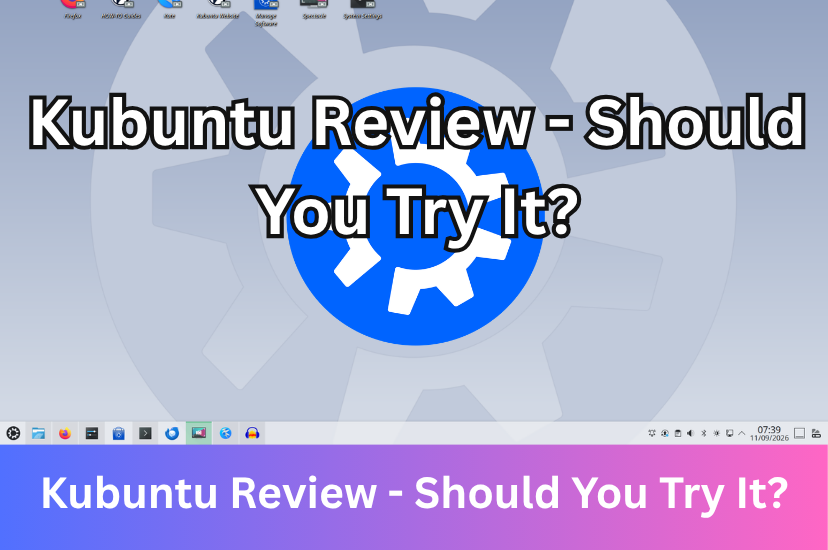
Once installed, it comes with a solid set of pre-installed applications right out of the box. This provides nearly everything you need for daily tasks. You will find the full LibreOffice suite, the Firefox web browser, media players for audio and video, and essential apps, like the Dolphin file manager, Spectacle for screenshots, and the System Settings app.
The layout of Kubuntu is familiar if you're switching from Windows. Because it uses the KDE plasma desktop, it features a classic bottom taskbar, a start menu in the left corner, and status icons in the right corner. This avoids unfamiliar layouts that can confuse beginner users moving from Windows. The start menu is quite user-friendly with a search bar and your applications grouped into categories, including development, graphics, games, and others so you can find what you're looking for.
Kubuntu has a central system settings menu which lets you change your desktop appearance, hardware, network, and system options. It can be accessed in the start menu under the System category and it's pinned to your Favourites by default. The grouped sections make it easier to navigate your hardware and desktop appearance settings. To find a specific setting, you can use the search bar and type keywords.
The Dolphin file manager is generally easy to use. It comes with a standard sidebar so you can quickly access your external drives. The built-in tabs and split view let you view two folders side by side without opening separate windows. It also prevents you from accidentally moving files. Dragging and dropping them triggers a clear menu asking if you want to copy or move them. While it's more customisable and feature-rich than the File Explorer in Windows, some beginners can find the large number of settings and panels overwhelming when first opening it.
Package Management and Updates
Kubuntu has a built-in graphical update and package manager called Discover. The built-in discover app store lets you install and update software with just a few clicks. You can open it by searching Discover in the start menu and browse apps using the search bar. You will see a list of popular apps on the home screen. On the page, you can take a look at the reviews and click the Install button to install the package. Many users install the Synaptic Package Manager for a more detailed package management view, which can be installed in the terminal.
Because Kubuntu is an official flavor of Ubuntu, it relies on the standard package management system under the hood. You can update and manage packages via the terminal using commands like sudo apt update and sudo apt upgrade.
Customisation
Kubuntu is one of the most customisable Linux distributions. Unlike other distributions where modifying the interface requires editing the system files, Kubuntu lets you customise how your computer looks and works in graphical menus. If you want to resize the taskbar, add transparency effects to the elements, or change the colour of the start menu, you can do this without needing to edit complex configuration files. Kubuntu comes with several pre-installed themes right out of the box, including a light, dark, and mixed version.
There are also a lot of community-made themes available for Kubuntu. Under colours and themes, click Get new to access the web-based store to search and download themes, icons, and widgets manually. This lets you change your entire desktop look in just a few clicks. You can find themes that make your desktop look like macOS, Windows, or ChromeOS in the store.
The massive selection of advanced options in the system settings menu can feel confusing to beginners. However, the default settings are optimised so you can easily ignore the deeper menus until you feel comfortable.
Resource Usage and Efficiency
While Kubuntu is heavier than lightweight alternatives, like Xubuntu or Lubuntu because of the extra visual effects and customisation options, it has become more efficient over time because of improvements in the KDE Plasma desktop environment. During the KDE 4 era from 2008 to 2014, the desktop environment was known for being bloated and resource-heavy compared to lightweight alternatives.
The transition to Plasma 5 in 2015 marked a major shift. Developers optimised the codebase and lowered idle RAM usage, beating competing desktop environments like GNOME in idle RAM consumption and general responsiveness. The background updater in the KDE discover software centre now releases memory properly after checking for system updates rather than hoarding it in the background and the startup speeds have been accelerated by removing unnecessary checks when loading wallpapers. A fresh boot of Kubuntu typically idles between 800 and 1.5 gigabytes of RAM, depending on how much RAM your computer has.
Should You Try Kubuntu?
If you want a fast, customisable, Ubuntu-based operating system that lets you change themes and panels easily and feels familiar if you're switching from Windows, Kubuntu is a great choice. It will run much faster and use much fewer system resources than Windows 11 or 10 does, making it a great option to speed up older computers. If you're a beginner, most everyday tasks and system updates can be handled entirely through graphical menus. The massive list of customisation options can be difficult to navigate, but you can safely ignore them and stick to the defaults.
Comments
About Us
-
We offer guides, tutorials, and reviews about the world of information technology. Whether you're a tech enthusiast, a professional, or a beginner, our goal is to inspire you and guide your tech journey. Subscribe to stay updated with the latest videos and explore the exciting world of computing and information technology.
Recent Articles

Recent Quizzes
Subtopics
Network Services Network Setups Network Standards Network Hardware Network Identifiers Network Software Internet Protocols Internet Organisations Data Transmission Technologies Web Development Web Design Web Advertising Web Applications Web Organisations Web Technologies Web Services SEO Threats To Systems, Data & Information Security Mechanisms & Technologies Computer Hardware Computer Software Ethics & Sustainability Legislation & User Data Protection