7 Windows 11 Features To Disable For Privacy
Date First Published: 23rd March 2026
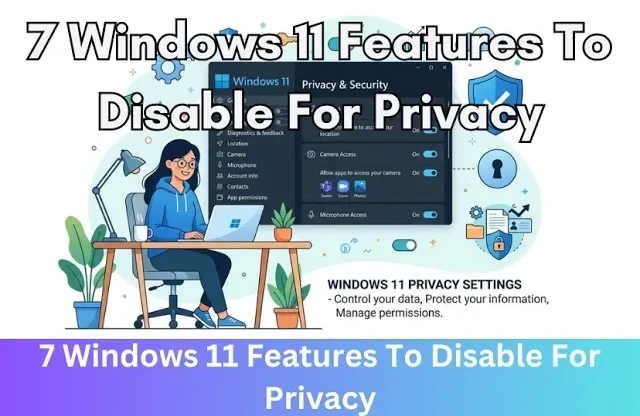
With recent updates, Microsoft has enabled several data-collection features by default. We walk you through 7 important privacy settings you should disable to stop tracking and keep your data private. We’ll cover how to stop targeted ads, prevent background data collection, and turn off intrusive AI features. These steps will not only increase your privacy but can also boost your PC performance.
1. Diagnostic Data
The most important feature to disable if you want to improve privacy is the optional diagnostic data. You will find this option under Settings, privacy & security, and Diagnostics & feedback. Turning this off prevents Microsoft from improving your experience based on the apps and features you use and the websites you visit. Note that Microsoft still collects essential Required diagnostic data for security purposes, even if this option is turned off. This is the minimum data which is used to keep your device and operating system up to date. Some privacy-focused users find that Microsoft's descriptions of what they consider necessary data is not sufficiently defined, leading to concerns about data gathering.
2. Inking and Typing Personalisation
If you don't require specialised text suggestions, you can safely disable inking and typing personalisation. You will find this option just below diagnostic data. This feature works by collecting your frequently used words and handwriting patterns to improve text suggestions and handwriting recognition. It creates a local personal dictionary to predict text, but critics have viewed this feature similar to a keylogger because it records what users type and writes and could transfer sensitive information to Microsoft's servers. There are concerns that such data, even if anonymised or sampled, could be shared with third parties for marketing and research.
3. Search History Tracking
The search history records the apps you use, files you open, and websites you browse to help you resume tasks across sessions and devices. Windows records exactly what you do on your computer, creating a comprehensive log of your daily habits. While it's designed to enhance productivity by allowing you to resume past tasks, this feature creates a detailed log of your activities, which is stored locally and can potentially be synced to Microsoft servers if you're signed in with a Microsoft account. To disable activity tracking in Windows 11, go to Search under privacy and security and toggle off Store my search history on this device.
4. Windows Recall
Windows Recall is turned off by default and it's not available on all PCs. It's an exclusive feature for new Copilot+ PCs that meet specific hardware requirements. This feature has raised privacy and security concerns, mainly because it takes frequent screenshots of your screen activity, including your emails, chats, and browsing history, and stores them locally to make them searchable using AI. While updated versions allow you to opt in, if a device is compromised, attackers could access this stored history. It's not required for Windows 11 to function and you can safely disable it if you handle confidential data, work with sensitive information, or are concerned about privacy.
5. Forced Cloud Syncing
Windows 11 has default cloud sinking through OneDrive that many users see as forced. While you can turn this off, Microsoft designs the setup process to automatically back up your desktop, documents, and picture folders to the cloud if you sign in with a Microsoft account. Since the free OneDrive tier is only 5 gigabytes, this automatic backup often fills up quickly, resulting in frequent, annoying notifications for you to purchase more. If you have multiple devices and want to sync your data across them, OneDrive offers a simple way to do this. If you only have one computer, you can turn off OneDrive and store files directly on your hard drive, but using it can still act as a backup in case your hard drive fails. The best way to turn it off is to unlink your account in the settings and disable it from running at startup.
6. Personalised Advertising ID
The personalised advertising ID works by creating a unique, user-specific identifier that allows apps and advertising networks to track your habits, build profiles of interests, and serve targeted ads. While it's not a direct security threat, it acts as a digital fingerprint for your activity. To prevent apps from using your behavior for targeted ads, you can turn off the personalised advertising ID under Recommendations and Offers. This won't reduce the total number of ads you see, but makes them less relevant to your interests.
7. Location Tracking
Under the Location section of privacy and Security, you can toggle off Location services to stop apps, the operating system, and Microsoft from accessing your location. While the feature is designed to provide accurate weather information, local search results, and Find My Device capabilities, it also allows Microsoft and third-party apps to track the physical location and movement patterns, which many people view as a privacy risk. If you need to use it, you can scroll down and toggle access for specific apps. For example, you may allow access to Maps but deny browsers.
Bonus Tip: Local Account vs. Microsoft Account
Windows 11 strongly pushes towards cloud integration, offering easy access to Microsoft Store, OneDrive, synced settings, and Microsoft 365. If you don't need to use these services, local accounts provide a more streamlined, private experience. Navigate to Accounts, your info, select Sign in with a local account instead, and follow the prompts. This changes your login method to a local, offline username and password, requiring a sign-out to finish the switch. After switching, you will no longer be signed in to Microsoft services, like the Microsoft Store or OneDrive automatically. By using a local account, you don't need an internet connection to log into your computer and keep your data on your device rather than synced online.
Comments
About Us
-
We offer guides, tutorials, and reviews about the world of information technology. Whether you're a tech enthusiast, a professional, or a beginner, our goal is to inspire you and guide your tech journey. Subscribe to stay updated with the latest videos and explore the exciting world of computing and information technology.
Recent Articles




Recent Quizzes


Subtopics
Network Services Network Setups Network Standards Network Hardware Network Identifiers Network Software Internet Protocols Internet Organisations Data Transmission Technologies Web Development Web Design Web Advertising Web Applications Web Organisations Web Technologies Web Services SEO Threats To Systems, Data & Information Security Mechanisms & Technologies Computer Hardware Computer Software Ethics & Sustainability Legislation & User Data Protection