Windows 11 - 10 Settings To Change Right Away
Date First Published: 22nd February 2026
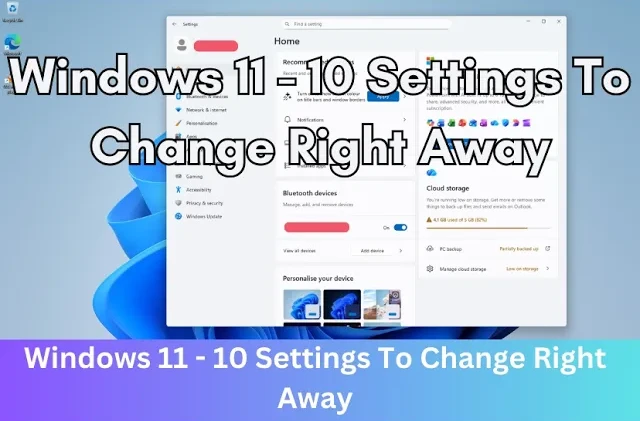
Is your Windows 11 PC feeling slow or invasive? In this video, we’re exploring the 10 most essential settings you need to change immediately to reclaim your privacy, boost performance, and silence those notifications. From disabling hidden ad tracking to optimising the new search features, these tweaks will transform your PC from a data-collection tool into a personalised experience.
1. Uninstall Bloatware
Windows 11 comes with pre-installed software, often known as bloatware, which includes both Microsoft-integrated apps and third-party software pre-installed by manufacturers. Most people don't use all these apps and can uninstall some of them to free up space and speed up the system. Some examples of bloatware are trial software, like McAfee or Norton, pre-installed games, and promotional apps.
You can uninstall most bloatware on Windows 11 by going to Installed apps in settings. If you see any apps you know you won't use, you can click on the three dot menu and select Uninstall. For stubborn system-level apps, you can use specialised tools to remove them. You should always create a system restore point before removing system components.
2. Manage General Privacy and Data Collection Settings
Windows 11 centralises privacy and data collection management within the Windows Settings app. By navigating to Privacy and security, you can adjust how your data is handled across several key categories. Under general settings, you can adjust whether content is personalised based on your usage. The advertising ID allows apps to show personalised ads based on your past behaviours. Disabling this option limits this tracking and prevents advertisers from profiling you.
Letting websites provide locally relevant content by accessing your language list allows browsers to automatically display websites in your preferred language and offer regional content. It uses your configured language list to tailor web experiences. Turning it off will slightly increases privvacy by preventing websites from reading your language preferences.
The option to let Windows improve Start and search results by tracking app usage enables tracking of frequently used apps, surfacing them in the Start menu and search results for faster access. If you find Windows is not improving the search experience or prefer less data collection, you can toggle this off.
You can turn off optional diagnostic data in the Diagnostics and feedback tab by toggling this option off. While you can't fully disable all basic diagnostic data, you can limit it to the minimum required level and delete existing data.
3. Manage Search Settings
To control what data Windows uses for search and how results are filtered, go to the Search section of Privacy & Security. To disable local search history in Windows 11 and improve search performance, toggle off Search history on this device under the History section. This stops Windows from saving local searches, reduces background activity, and clears previous entries.
Disabling search highlights by toggling off the option removes the daily illustrations, trending topics, and Bing suggestions that appear in the search bar and menu. This action clears visual clutter, reverting the search icon to a simple magnifying glass and preventing Microsoft from displaying daily content, such as holidays or Microsoft Rewards.
When searching files, you can select Classic to index only your Documents, Pictures, Music, and Desktop, which saves resources, or Enhanced to index your entire PC, providing comprehensive, faster, but more resource-intensive searches. We recommend Classic for most users who organise their files in the default folders and want a faster search performance. For advanced users with large libraries stored outside default folders, or those with powerful desktop PCs, you can choose enhanced.
4. Review App Permissions
You can also change the default app permissions, specifically for apps installed via the Microsoft Store. You can control which apps have access to sensitive hardware and data, such as your location, camera, contacts, and microphone. We recommend that you restrict camera and microphone access to only trusted apps. Limiting access prevents unnecessary data sharing, reduces tracking, and lowers the risk of malicious apps stealing information.
5. Turn Off Microsoft Ads
Windows 11 includes ads by default, which many people like to turn off because they find them disruptive, especially since these ads appear within the operating system itself. To turn off Microsoft ads in Windows 11, toggle off both "Get tips and suggestions" and "Suggest ways to get the most out of Windows and finish setting up this device" under notifications These steps remove lock screen ads, start menu suggestions, and pop-up notifications.
6. Turn Off Notifications
If you want to reduce digital distractions and improve focus, you can turn off app notifications in the Notifications tab under System settings. You can toggle all notifications off or disable them for specific apps. If you want to hide them on the lock screen, you can uncheck the two options to show them on the lock screen. You can also set Do Not Disturb, which temporarily mutes notifications to help you focus. Missed alerts are not lost; they are stored in the Notification Center for review later.
7. Declutter The Taskbar
Decluttering the taskbar can reduce distractions and make it easier to locate active applications. To declutter the Windows 11 taskbar, right-click any empty space on the taskbar, select Taskbar settings, and toggle off unwanted default items like Search, Widgets, Chat, and Task view. You can also unpin apps by right-clicking them and selecting Unpin from the taskbar. If you prefer keeping Search, you can change it from a large box to a simple icon in the Taskbar settings.
8. Show File Extensions
To show file extensions in Windows 11, open File Explorer, click the View menu at the top, select Show, and then check File name extensions. This instantly displays the letter file type at the end of filenames. This lets you easily distinguish between file types and can help identify potentially malicious files disguising themselves as legitimate documents.
9. Start Settings
To customise the Windows 11 Start menu settings, navigate to Settings, Personalisation, and Start. From there, you can reduce the clutter for faster access. You can turn off the recently added apps, most used apps, and recommended apps if you want more space for your pinned apps. While this hides the content, the Recommended title may still appear. If you prioritise the pinned apps over the recommended apps, you can select More Pins in the Layout settings.
10. Night Light
Windows 11 has a built-in Night light feature designed to reduce blue light emission and ease eye strain. We would recommend it if you use your computer in low-light environments or during the evening. It can be found in the Display menu in settings. Within the menu, you can toggle it on and off, use a slider to adjust the strength, and schedule it to turn on at sunset or a custom time.
Comments
About Us
-
We offer guides, tutorials, and reviews about the world of information technology. Whether you're a tech enthusiast, a professional, or a beginner, our goal is to inspire you and guide your tech journey. Subscribe to stay updated with the latest videos and explore the exciting world of computing and information technology.
Recent Articles

Recent Quizzes
Subtopics
Network Services Network Setups Network Standards Network Hardware Network Identifiers Network Software Internet Protocols Internet Organisations Data Transmission Technologies Web Development Web Design Web Advertising Web Applications Web Organisations Web Technologies Web Services SEO Threats To Systems, Data & Information Security Mechanisms & Technologies Computer Hardware Computer Software Ethics & Sustainability Legislation & User Data Protection